Agency account setup / Set up SMTP Email settings
We're thrilled to announce a new feature that allows you to connect your own email provider’s SMTP server to SpeedMatchApp. This means all emails sent through the system—such as profile links, event links, and matches—will come directly from your email address instead of ours.
Before beginning your setup, you need to find out the SMTP settings from your host, ie: Gmail, Yahoo, Outlook. For example, if you use Gmail, you can find this information by searching for Gmail SMTP settings in your browser.
Once you have your setting information, save it - screenshot or write it down. You will need this information
Steps to set your agency's Custom SMTP Settings:
1. Go to Settings (top right corner) > Email Settings
2. Scroll down and enter the email you wish your participants to reply to
3. Enter SMTP Host
- For example: If you use Gmail, your SMTP Host will be: smtp.gmail.com
4. Enter your SMTP Port Number
- This is based on your Connection Type. For example: If you use Gmail, your SMTP Port could be 587 or 465.
5. Enter your Connection Type
6. Under SMTP Username, enter your Email address
7. Under SMTP Password, enter your App Password (not your Gmail email password, if using Gmail) - see steps below on how to get your Gmail App Password
8. In the Sender section enter the name and email address you want the mail to come from in the following format:
- Agency Name <email@agency.com>
9. Click Send Test Message
You will receive an email if the settings are correct. If you do not receive an email, then your settings are not correct so it's best to double-check your own email server's SMTP settings.
 NOTE: Gmail has very strict Security Settings. If you are using Gmail and you do not receive the Test Email, follow these steps to get your App Password:
- Open your Google Chrome browser.
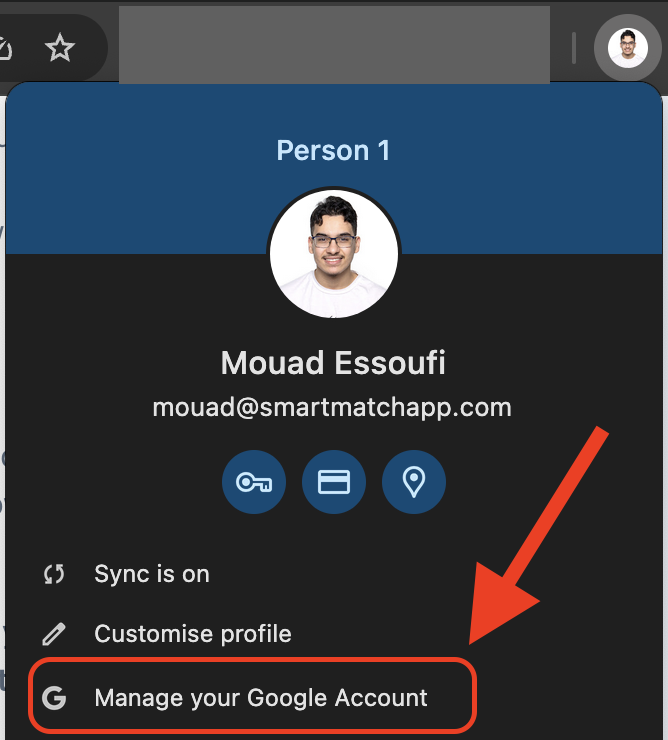
- Click your profile photo located at the very end of the URL bar.
- Select Manage your Google Account. This will take you to your Google Account Settings.
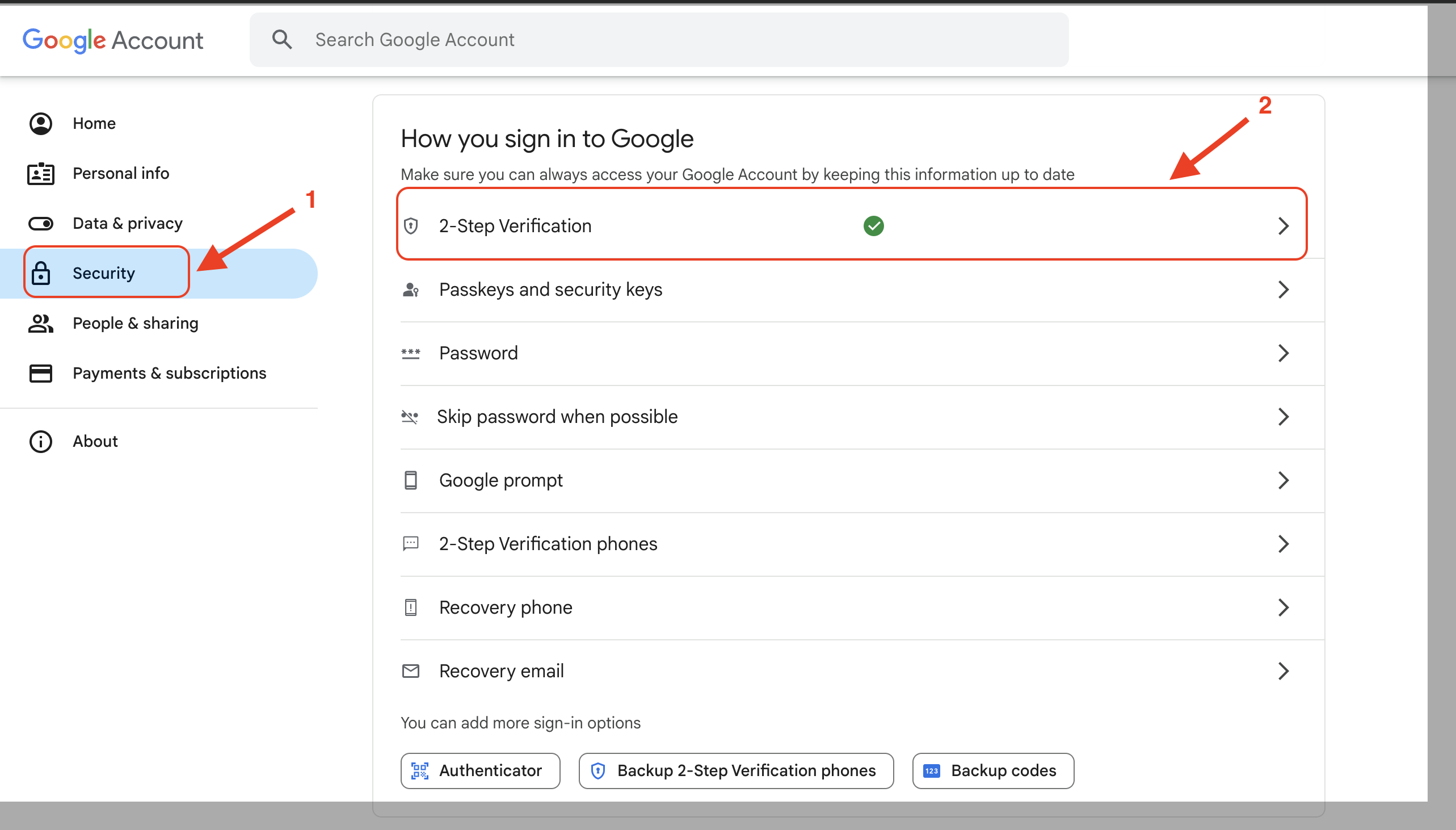
- Click Security.
- Under How you sign in to Google, click on 2-Step Verification.
- You will be prompted to re-enter your Google password next.
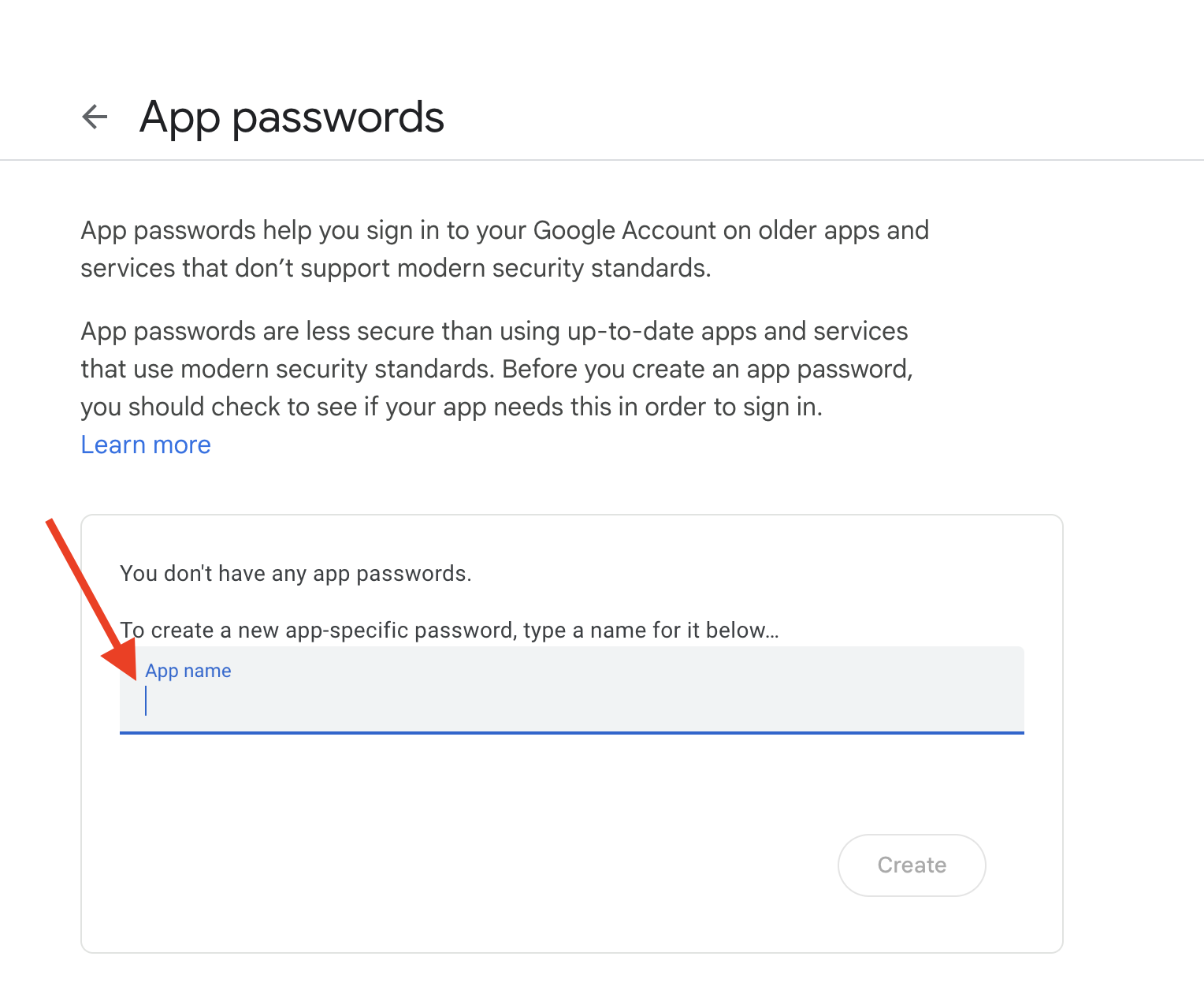
- Scroll down and locate App Passwords. If you can't find it, please click on the following link to set it up: App Password
- Click on that and enter SPA in the blank field. Then click Create.
- A pop-up message will appear with your generated App Password. You need to copy it somewhere so you can enter it on your SMTP email settings for your SpeedMatchApp account
- Click Done
- Go back to SpeedMatchApp > Settings > Email Settings.
- Scroll to SMTP Password field and enter the generated App Password
- Click anywhere to save it.
- Click Send Test Message.
- Your message should go through now.
⚠️ IMPORTANT NOTE:
- Once you connect your email provider to SpeedMatchApp, the event labels under each participant's name (e.g., "Link Delivered" and "Email Opened") will no longer be displayed. The only label that will remain visible is "Event Confirmed", which updates as soon as participants click on the provided link (ie: event links & event matches).